Running a Missing Media Report
The Missing Media report lets you see which of your campaigns are missing creatives. For each campaign, if any day in the date range you run the report for is not covered by an active creative, then it appears in the report.

Click the Ad Management tab, then the Reports sub-tab, then select Missing Media. |
|
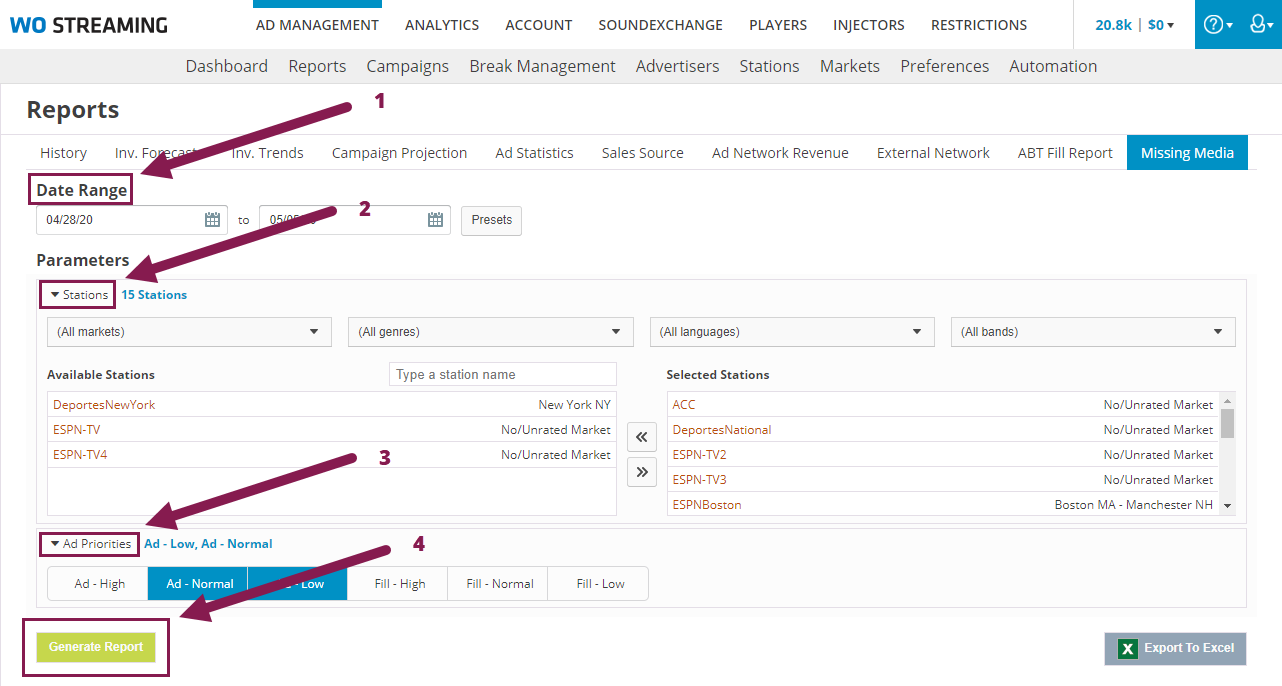
To run a Missing Media report:
1.In Date Range (1 in the screenshot), select a start and end date for the report.
2.In Stations (2), select specific stations by market, format, language, or band.
Move a station between Available Stations and Selected Stations by clicking it.
Move all stations between Available Stations and Selected Stations by clicking the double arrow buttons.
3.In Select Ad Priorities (3), click priority levels to select them.
Note: If no ad priorities are selected, all priorities will be included in the report.
4.To finish, click Generate Report (4).
5.In the Generate Report dialog, enter a name for the report.
6.Wait for the report to generate, or check the History tab later to find it.
Note: The report will only be available for 8 hours. You can run another report with the same parameters if you want to view it again later.
You can change which columns are visible in the report once it is ready by clicking Change Columns and checking or unchecking the available columns.
•Assigning Media to Multiple Ads