About Player Layouts
See the other web player topics for instructions on creating and editing the web player.
Below is a screenshot of how a sample v7 Player appears on a desktop. Almost all of the features listed are optional or customizable.
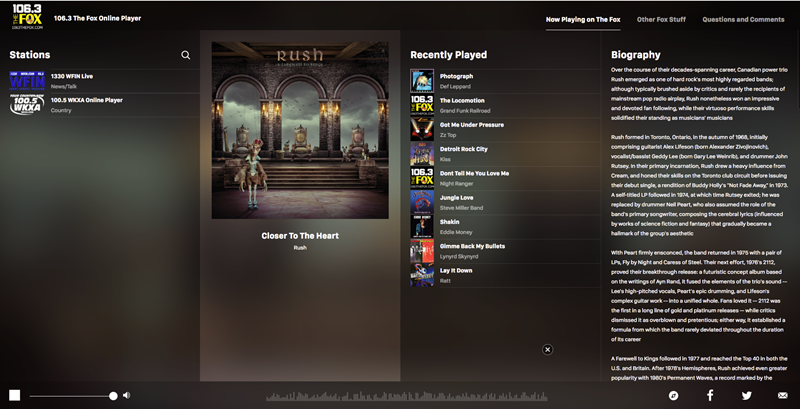
Features:
•Current Station Logo: Upper left corner, this is the station the user is currently playing. In this shot, it says 106.3 The Fox.
•Stations: Left column. Lists the stations available to the user. They can search by clicking the magnifying glass icon and typing part or all of a station name in the box. 
To edit the
•Currently Playing: Untitled second column from the left. Shows the album art (if available), title, and artist for the track currently playing for music stations.
•Recently Played: This column lists the most recently played tracks.
•Biography: If available, displays an artist biography.
•Volume: Slider in the lower left of the player. The user can use this to start or stop play or to change the volume of the music.
•Sharing: Icons in the lower right corner. The user can share their listening status to Facebook, to Twitter, or by email.
Below is a screenshot of how a sample v6 Player appears on a desktop. Almost all of the features listed are optional or customizable.
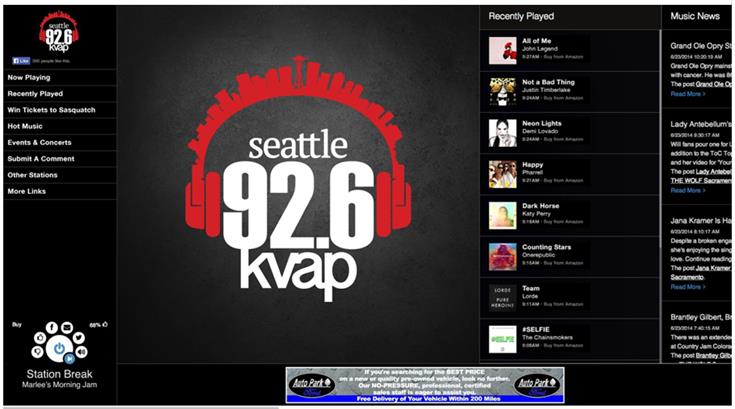
Feature Key:
•Station Logo and link to website
•Now Playing Pane: (music) Includes song cover art or default album image.
•Recently Played Pane: (music) Includes cover art, artist, song name. Click to get artist bio, pics, (not shown).
•Win Tickets: An example of an IFrame pane to embed content from website
•Hot Music: Examples of RSS Podcasts, News Feeds, and custom Playlist Panes
•Submit a Comment: Comment Pane for getting comments or requests from users
•Stations Pane: Link to other Stations’ players, filters for market and genre, and search.
▪More Links: Link to other website content, like Advertise With Us
•Share with Facebook, Twitter, Email
•Thumbs-up/-down content
•Support for display banners, companion banners, pre-roll videos (not shown).