Running a Pacing Report
The Pacing Report is used to determine if campaigns are pacing correctly (on track to deliver 100% of the required impressions by the end date).

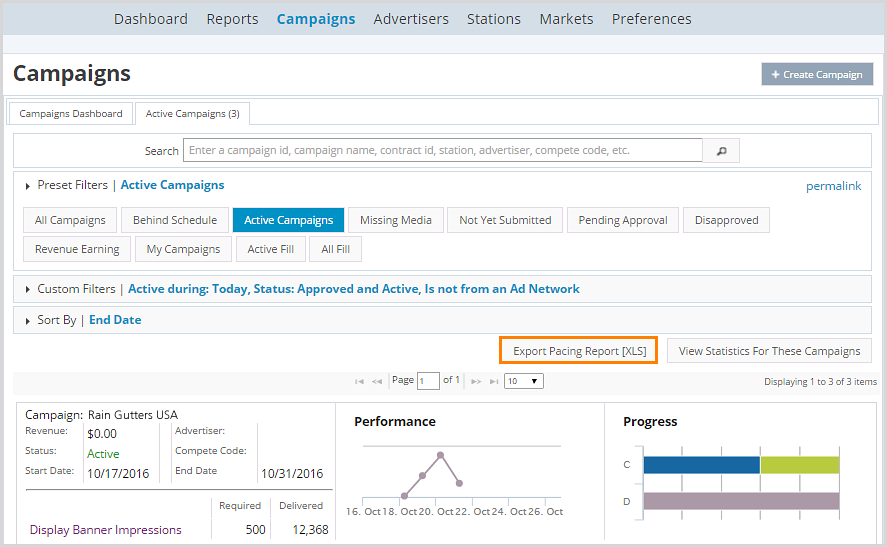
Click the Ad Management tab, then the Campaigns sub-tab, then select Active Campaigns. |
To run a pacing report:
1.In Preset Filters, change the filter if needed.
2.In Custom Filters, select filters if needed.
3. Click Export Pacing Report [XLS].
A confirmation dialog appears.
4.Click Got it.
The results display in Excel.
Pacing Report Results Table
Note: The WOT Order ID and WOT Line ID fields only appear for accounts that are integrated with WO Traffic Digital Orders.
Name |
Description |
Campaign Name |
The name of the campaign. |
Campaign ID |
The campaign ID. |
WOT Order ID |
WO Traffic Order ID. |
Sales Source |
The source of the sale. |
Sales Office |
The related sales office. |
Sales Rep. |
The sales representative's name. |
Advertiser Name |
The name of the advertiser. |
Ad Name |
The name of the ad. |
Ad ID |
The ad ID. |
WOT Line ID |
WO Traffic Line ID. |
Priority |
The media priority. This can be anywhere from 1 through 6. |
Ad Type |
The media type, either In-Stream, Gateway, Display Banner, or Companion Banner Ads. |
Traffic Type |
Plays or impressions |
Required |
How many Plays or Impressions are required. |
Delivered |
Total media impressions. |
% Delivered |
The percentage of Plays or Impressions delivered. |
Raw Pacing |
Days completed are the number of days that an ad has had impressions recorded. Day total is the total number of days in the campaign that have an active flight - i.e. add up all days in all flights. |
Forecast Pacing |
This is the same as above but adjusted for the forecasted impressions for the remaining days of the ad. |
Companion Banner Clicks |
How many Companion Banner Clicks were recorded. |
Companion Banner Impressions |
How many Companion Banner Impressions were recorded. |
Revenue Model |
Either Performance or Flat Rate (CPM, CPP). |
Campaign Value |
The monetary value of the campaign. |
Cost Per Unit |
How much each unit costs. |
Start |
Start of the campaign. |
End |
End of the campaign. |
Ad State |
This field displays whether the ad is Active or Paused. |