Navigating In AmperWave Streaming
Use the menus and methods below to navigate in AmperWave Streaming.
Tabs
Click tabs and sub-tabs to navigate to their pages.

•Ad Management: Manage reports, advertisers, campaigns, markets, preferences, and stations
•Analytics: Review live audience reports and detailed statistics
•Account Settings: Enter or view contact information for the account
•SoundExchange: Performance reporting
•Players: Configure, create, delete, or edit players
•Restrictions: Configure blackouts
Note: Additional tabs, if any, appear underneath the main tabs. In the screenshot above, the Ad Management tab is selected, and the tabs with the gray background are its sub-tabs. The currently selected sub-tab is Dashboard.
Ad Stats
The Ad Stats widget, near the upper right corner of the screen, displays data for both impression-based and play-based campaigns. Click it to see more information.
Next to it, the Help menu and Account menu provide links to this help system, the Support contact page, and your personal account information, as well as a link to log out.
Breadcrumbs
Breadcrumbs appear at the top left of a page when drilling down into the Campaigns, Advertisers, Stations, and Markets categories within the Ad Management section of the interface. They help to provide an additional level of navigation to help keep users aware of where they are when working with the system.

Closing Windows
To close windows click  .
.
Additional Information
Field descriptions that have a underline reveal additional information if you hover the mouse over them.
Click the  button for more information about the elements near it.
The  button takes you to the related page in our Help system.
Reviewing Data
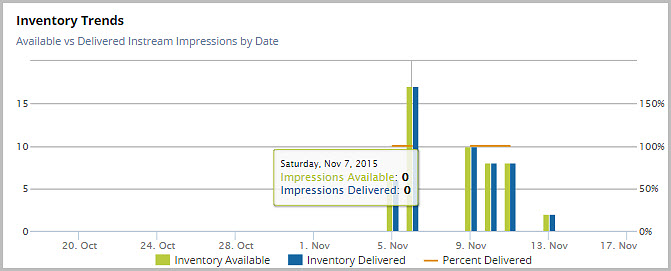
To view a specific date in the system, click and drag over the date on any of the charts in the system.