About Ad Networks
AmperWave Streaming ad network partners provide income for broadcasters who are opted in to the ad network. Ad network campaigns are typically nationally known brands like Geico and Home Depot, and are placed in priority after broadcaster direct-sold campaigns.
To view ad networks settings, click the Ad Management tab, then the Preferences sub-tab, then click Ad Networks.
Below is an example of a client’s ad network settings. The table shows the networks subscribed to, which aspects they can utilize (gateways, in-stream, or display banners), and the min/max percent of allocated inventory. You’ll also notice at the top left, a Max Rev Share value.
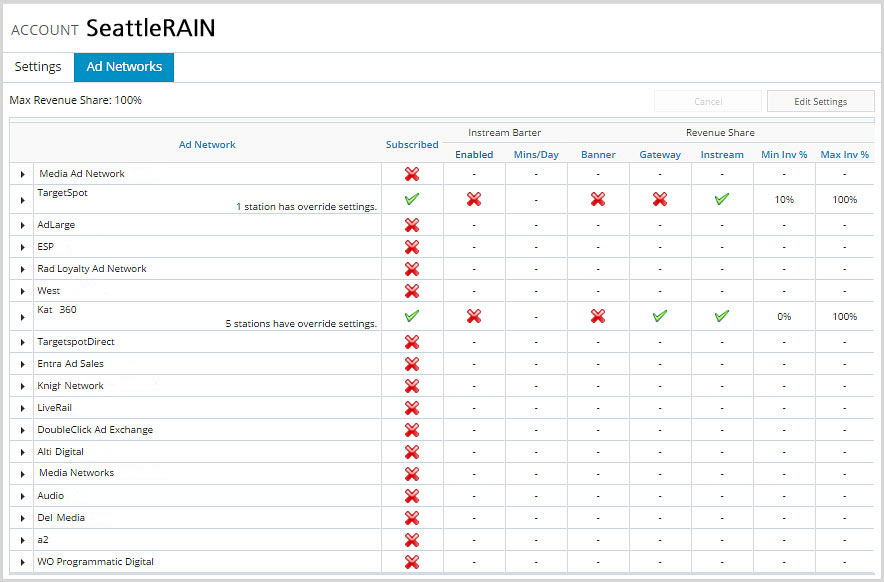
Note: These settings can only be changed by working with AmperWave Streaming Support. Contact support by submitting a ticket through AmperWave Streaming or by emailing support at streamsupport@amperwave.com.
Ad Networks Settings In-Depth
Minimum Inv %
The minimum inventory percentage is a value that AmperWave Streaming tries to reach over the course of a day assuming there is enough content available in the network to hit that percentage. Typically, customers use this value based on contractual obligations or trade deals (i.e. We have to give X network X impressions per month/day). Or some ad networks may be providing a higher CPM than local content and they want that to take precedence over local content.
Maximum Inv %
The maximum inventory percentage is the maximum value that AmperWave Streaming allocates to the network in a given day, even if there is more eligible content within that network it does not exceed the maximum percentage. Typically, customers use this to cap ad networks that are serving lower CPM’s than others and has a large amount of eligible content (e.g. NETWORK1 may have enough content to fill all inventory but has low CPM value, whereas NETWORK2 may have only enough content to fill 20% inventory but has very large CPM campaigns: One would place a lower maximum percentage on NETWORK1 to ensure that the other networks get more plays).
Max Rev Share %
The maximum revenue share percentage is the absolute maximum percentage that all ad networks, combined, can fill in a day. Once this cap is hit, regardless of any Min/Max, AmperWave Streaming disables ad networks from playing anything and the stations P4-6 campaigns play instead. However, if no P4-6 content is eligible this value is overruled and ad networks are re-enabled to prevent dead air.
Station Level Override
To override an ad network setting for one or more stations, click Add Station Level Override for that setting. This is useful for controversial talk stations that are unable to play national spots. Make sure you scroll up and click Save Settings when you are finished.